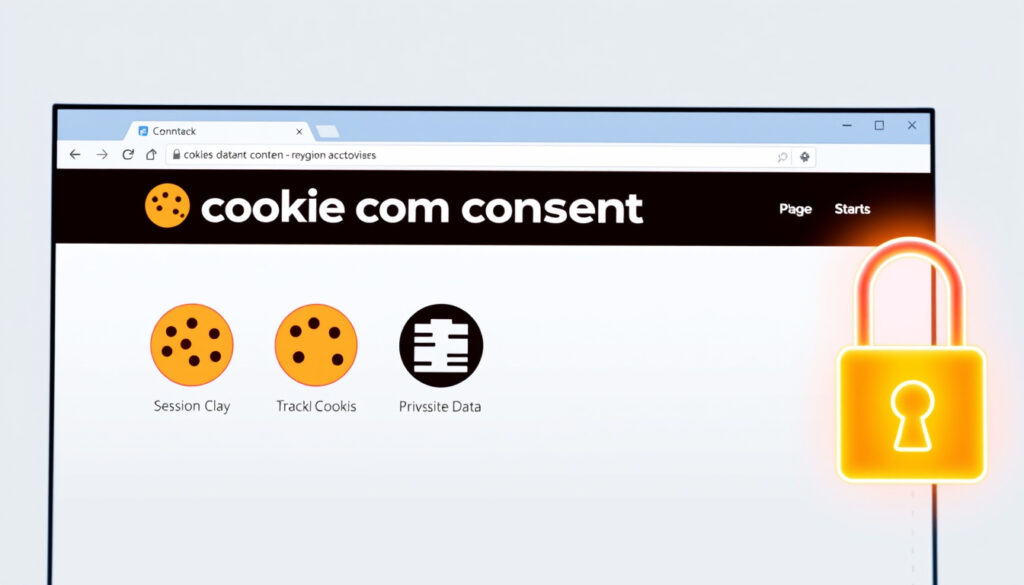
What Is a Cookie on a Website? Guide to Types & Privacy
Chances are you’ve clicked through more cookie popups than you can count this week alone. But what actually happens when you hit “Accept”? A cookie is a small text file that a website drops on your device to keep track of your session, save preferences, or remember what you left in your cart. Ever since GDPR enforcement began on May 25, 2018, websites serving EU users are legally required to ask before tracking you — but most people just click through without reading. Understanding cookies means understanding what you’re actually agreeing to.
Created by: web server · Stored on: user device · Size: small text file · Purpose: track user state · Examples: session ID, preferences
Quick snapshot
- Cookies are small text files websites place in your browser to remember login status, preferences, and browsing behavior (Clickio)
- Precise breakdown of how many cookies on average track advertising versus essential functions across all websites
- Safari and Firefox blocked third-party cookies by default starting 2020; Chrome reversed its deprecation plan in July 2024 (Clickio)
- Industry momentum continues toward cookieless tracking alternatives even without mandatory browser-level blocking
| Label | Value |
|---|---|
| Definition | Small block of data from web server |
| Storage location | User’s computer or device |
| Primary use | Maintain state across pages |
| Regulated by | GDPR, ePrivacy Directive |
| First-party scope | Site that placed the cookie |
| Third-party scope | Cross-site tracking and advertising |
What are cookies?
At the most basic level, a cookie is a tiny text file that a web server sends to your browser and that your browser stores on your device. The file contains plain text — a name, a value, and usually an expiration date. When you revisit the same site, your browser sends that cookie back, allowing the server to recognize you.
How cookies work
The process follows a simple request-response loop: your browser requests a page, the server sends it along with a Set-Cookie header, your browser saves the data, and on your next visit it includes the cookie in the request header. This handshake is what lets a website know you logged in five minutes ago or that you prefer your cart in euros.
Servers have no memory of previous visits — cookies are the only native way HTTP remembers who you are between requests, making them essential infrastructure for logged-in experiences.
Types of cookies
Cookies break down along two axes: who sets them and how long they last. First-party cookies come directly from the site you’re visiting and handle core functionality like keeping you logged in or remembering your language setting. Third-party cookies come from a different domain — usually an advertiser or analytics provider — and can track you across multiple sites. Session cookies vanish when you close your browser; persistent cookies survive with an expiration date, sometimes for years. A more dangerous variant, supercookies, are planted at the network level and can recreate themselves even after you try to delete them (Termly).
Flash cookies and UIDH supercookies operate independently of normal browser controls, meaning clearing cookies in Chrome won’t remove them — they require network-level or ISP-level intervention.
What is an example of cookies?
Concrete examples clarify what can otherwise feel like abstract infrastructure. A website stores a user_session cookie after you log in, so you don’t have to re-enter your password on every page. It saves a language cookie to remember you prefer the French version of the site. An e-commerce store holds a wishlist cookie so items you saved last week are still there when you return (iubenda). None of these examples are sinister — they’re the ordinary mechanics that make the web convenient.
Session cookies
- Exist only while the browser tab is open
- Automatically deleted on browser close
- Common use: shopping cart during a single visit, form progress
Persistent cookies
- Carry a set expiration date (days, months, or years)
- Survive browser restarts and device changes
- Common use: “Remember me” login, site preferences, targeted advertising IDs
Third-party cookies
- Placed by domains other than the one you’re visiting
- Feed advertising networks and cross-site analytics tools
- Subject to increasing browser restrictions since 2020
The 95% figure worth remembering: about 95% of websites use cookies for relatively harmless purposes like keeping you logged in or remembering your preferences (Cardlytics). The remaining fraction drives the privacy debates.
Should I accept cookies?
The short answer: it depends on what kind of cookie is asking. Essential cookies — those that handle login, security, or load balancing — are usually required for a site to function at all. Declining them may break core features. Tracking and advertising cookies are another story.
Essential vs tracking cookies
Under the ePrivacy Directive, strictly necessary cookies (such as those for load balancing or authenticated sessions) are exempt from consent requirements (iubenda). Everything else — analytics, advertising, personalization — requires opt-in consent under GDPR, at least for EU users. The cookies pop-up you see on European sites reflects this legal requirement.
Privacy implications
Third-party cookies are the main privacy concern. They enable cross-site tracking that can build a surprisingly detailed profile of your browsing habits, including potentially sensitive inferences about health, finance, or political views (Cardlytics). If intercepted on an unsecured network, cookies can also enable session hijacking — where an attacker takes over your logged-in session (Netwrix).
Accepting tracking cookies funds free content and enables personalized ads — but the cost is a detailed behavioral record sold to data brokers. Rejecting them means a less convenient web and potentially seeing generic instead of relevant advertising.
What happens if I refuse to accept cookies?
Refusing cookies produces varying outcomes depending on the site and your jurisdiction. In the EU and UK, sites must honor your refusal — GDPR and the ePrivacy Directive require consent to be genuine, not just a checkbox on the way to content. In the US under CCPA, you typically get the right to opt out of data sales, though the mechanism varies by site.
Site functionality loss
- Login sessions fail — the site can’t recognize you between pages
- Shopping carts empty on every new page
- Language and theme preferences reset each visit
Personalization impact
- No saved reading history or recommended content
- Generic ads instead of interest-based targeting
- Repeated cookie consent banners on every visit (since no preference cookie is saved)
The catch: refusing all cookies on most sites creates a worse user experience, which is why consent popups often push toward acceptance. You can often compromise by blocking third-party cookies while allowing first-party essential ones.
How to clear your browser’s cache and cookies?
Managing cookies is straightforward once you know where to look. Each major browser provides settings to view, block, or delete cookies — though the steps differ slightly.
Steps for Chrome
- Type
chrome://settings/cookiesdirectly into your address bar (Google Privacy & Terms) - Use the search bar to find “Clear browsing data” or navigate to Privacy and security
- Select “Cookies and other site data” or choose a time range and confirm
- For site-specific control, scroll to “Sites that can always use cookies”
Steps for other browsers
- Firefox: Settings → Privacy & Security → Cookies and Site Data → Manage Data
- Safari: Preferences → Privacy → Manage Website Data → Remove relevant entries
- Edge: Settings → Cookies and site permissions → See all cookies and site data
For a fresh start without clearing manually every time, incognito or private mode deletes all cookies when you close the window — Chrome’s official documentation confirms this behavior (Google Privacy & Terms).
Upsides
- Removes tracking identifiers and ad profiles
- Clears stored session data that could be intercepted
- Resets site preferences to default (sometimes desirable)
- Privacy-focused browsers block third-party by default
Downsides
- Forces re-login on every site
- Loses saved preferences like language or theme
- Cart contents may disappear mid-session
- Cookie consent banners return on every visit
Supercookies are very dangerous because they have great potential for causing privacy violations.
— Termly (Privacy Resource)
Cookies aren’t inherently bad and, in fact, about 95 percent of all websites use cookies for relatively harmless purposes.
— Cardlytics (Marketing Tech Blog)
Even with Chrome keeping third-party cookies as an option, the overall trend is clear: the industry is moving toward cookieless monetization strategies.
— Clickio (Ad Tech Blog)
The practical reality sits between the two extremes. Cookies are genuinely useful infrastructure that makes logged-in web experiences possible — and they are also a surveillance mechanism when third parties use them without meaningful oversight. The browsers and regulations have moved the needle: Safari has blocked third-party cookies by default since March 2020 (version 13.1), Firefox blocks known trackers with Enhanced Tracking Protection, and GDPR mandates consent for non-essential cookies across the EU. Chrome’s reversal in July 2024 complicates the picture, but it doesn’t erase the direction the industry was already heading.
Related reading: How to Download YouTube Videos: Legal & Safe Methods · Best Online Learning Platforms – Top Picks for Students and Adults
identitymanagementinstitute.org, ico.org.uk, accountablehq.com
When facing those ubiquitous cookie banners, understanding their role as detailed in guide to uses and privacy empowers users to manage privacy risks effectively with expert-recommended steps.
Frequently asked questions
What are cookies used for?
Cookies remember your login state so you don’t re-authenticate on every page, store preferences like language or theme, maintain shopping cart contents across sessions, and track behavior for analytics or advertising. Without them, every page visit would be treated as a brand-new stranger to the server.
Are cookies safe?
Most cookies are harmless in isolation. The risks come from third-party tracking cookies that build cross-site profiles, or from cookies intercepted on unsecured public Wi-Fi. You can mitigate risks by using HTTPS (which supports the Secure cookie attribute), avoiding the HttpOnly flag bypasses that enable XSS attacks, and clearing cookies regularly if you share a device.
Should I keep cookies on or off?
Keeping first-party cookies on is generally fine — you’ll need them to stay logged in and preserve preferences. Turning off third-party cookies removes cross-site tracking with minimal downside for most users. Privacy-focused browsers like Firefox, Brave, and Tor block third-party cookies by default, so switching browsers is the easiest path.
Is it wise to delete cookies?
Periodically deleting cookies is a reasonable privacy hygiene practice. It removes tracking identifiers and forces websites to ask for your preferences again, which can be inconvenient but also gives you a clean slate. You don’t need to delete every cookie every week — doing it monthly or after using shared devices is sufficient for most people.
Does clearing cookies get rid of passwords?
Clearing cookies does not automatically clear saved passwords — those are stored separately in your browser’s password manager. However, if a site relies on a cookie instead of a persistent login session, you may be logged out. The practical risk is low: most modern browsers keep passwords and cookies in separate secure stores.
Is it better to clear cache or cookies?
Both serve different purposes. Clearing cache removes locally stored website assets (images, scripts, stylesheets) to free space and fix loading issues. Clearing cookies removes login sessions, tracking identifiers, and preferences. For maximum privacy benefit, clear cookies. For fixing broken pages or freeing space, clear cache. You can do both in most browsers’ “Clear browsing data” dialog.
Why is it called cookies on the internet?
The term comes from magic cookie, a Unix concept for a token or packet of data that a program accepts and returns unchanged. Netscape engineer Netscape engineer Lou Montulli coined HTTP cookie in 1994 when implementing a shopping cart feature. The name stuck — not because of any food connection, though the metaphor of a small, discrete piece exchanged between parties happens to fit.
More related posts
 Chris Farley Death: Cause, Overdose, and Legacy
 Amrita Rao: Biography, Career, Family, and Hiatus
 Rare-Earth Elements: Countries, Minerals, and Critical Role
 Gilles Villeneuve: Ferrari Legend, Crash, and Lasting Legacy
 Is Master Chief a Real Military Rank? Halo vs Navy
 Chloe Kitts Injury, NIL Value & Personal Life Facts
 Lindsay Lohan: Downfall, Sobriety & Comeback Facts
 Laura Benanti: Broadway Star, TV Actress, and Tony Winner